
Home / Custom animated pair wallpapers / AirCard iOS

AirCard iOS
Updated Nov 3, 2026
- AirCard iOS
- AirCard iOS iOS 27.2
- AirCard iOS download
- iOS
- iOS 27.2
- Updated
- Nov 3, 2026
- Collection
- Custom animated pair wallpapers
What Is AirCard iOS IPA?
AirCard iOS is an iPhone customization application developed by Mak5er.
It allows users to change the appearance of supported Apple Wallet cards and Lock Screen elements without installing a traditional jailbreak.
AirCard iOS is the mobile version of the AirCard customization project.
Users can select their own artwork and apply it to supported Wallet card designs.
The app includes tools to detect Wallet cards and assign custom names to make them easier to recognize.
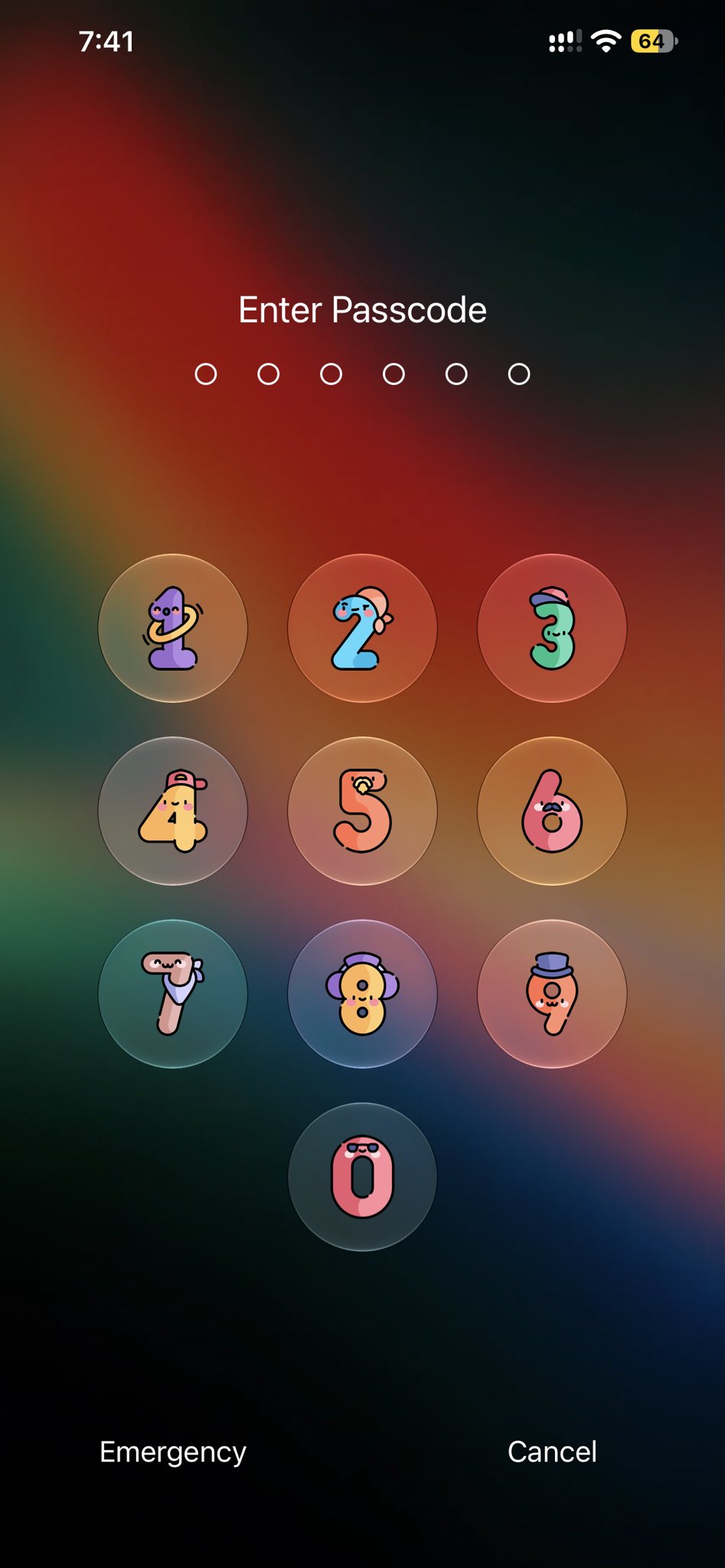
AirCard can also create custom Lock Screen passcode themes.
You can select an image, arrange it across the passcode buttons, or choose different images for individual number keys.
Passcode themes can be imported and exported as .passthm files.
AirCard iOS also supports .tendies wallpapers on compatible firmware.
These wallpapers can be created using Tendie Maker and imported into AirCard for installation.
The application communicates with selected iOS services through LocalDevVPN and a device pairing record.
On supported iOS 27 versions, users can complete pairing directly on the iPhone.
On iOS 18 through iOS 26, the developer requires an imported pairing file.
AirCard does not jailbreak the device or unlock Apple Wallet payment features.
It changes visual assets and cached artwork, not the real card number, bank account, balance or payment authorization.
Apple patched the system method used by AirCard in iOS 27.2 beta 3.
Therefore, the app's customization features are limited to the firmware versions documented by the developer.
Before using AirCard, check your iOS version and back up important information.
Opens in the members area. The account is free.
Custom Apple Wallet Card Designs
Change supported Wallet card artwork using your own images, crop card designs, identify payment networks and apply artwork to selected cards.
Lock Screen Passcode Themes
Create custom number-button artwork, preview keypad designs and import or export .passthm themes for supported iOS versions.
Animated Wallpapers and Easy Pairing
Import compatible .tendies wallpapers, apply them on supported firmware, and use on-device pairing or an existing SideStore pairing file.
How to Download and Install AirCard iOS IPA on iPhone
AirCard iOS can be installed on compatible iPhones using an IPA signing tool.
A traditional jailbreak is not required. However, the application needs a supported iOS version, a pairing record and a working LocalDevVPN connection before it can change protected visual assets.
Before installing AirCard iOS
- Open Settings → General → About.
- Check your exact iOS version.
- Confirm that your firmware is listed as supported.
- Back up your iPhone.
- Charge the battery above 50%.
- Keep a stable internet connection available for initial setup.
- Prepare your preferred IPA signing method.
- Make sure you understand the pairing requirements for your iOS version.
How to install AirCard iOS IPA
- Visit the official Mak5er/AirCard-iOS GitHub repository.
- Open the Releases section.
- Select AirCard-iOS v1.3.2.
- Download the AirCard-iOS IPA asset.
- Save the file to your iPhone or computer.
- Open SideStore, AltStore, TrollStore or another compatible installer.
- Import the IPA.
- Complete the required signing process.
- Install AirCard iOS.
- Enable Developer Mode or trust the application when required.
- Open AirCard iOS.
- Select the Pairing section.
- Complete the pairing method appropriate for your firmware.
- Configure the required local connection.
- Check that AirCard can communicate with the device.
How to pair AirCard on iOS 27
The developer provides an on-device pairing method for supported iOS 27 firmware.
- Open AirCard iOS.
- Go to the Pairing tab.
- Tap Pair This iPhone.
- Read the six-digit pairing code.
- Open iPhone Settings.
- Go to Privacy & Security → Developer Mode.
- Select Pair with AirCard-iOS, if the option appears.
- Enter the pairing code.
- Return to AirCard.
- Confirm that pairing completed successfully.
This method is documented for supported iOS 27 versions. It does not restore the patched AirTraffic vulnerability on iOS 27.2 beta 3 or later.
How to pair AirCard on iOS 18–27.2
These versions need an imported pairing file.
If you already use SideStore, a compatible pairing file may be available.
- Open AirCard iOS.
- Select Pairing.
- Tap Import Pairing File.
- Open the Files picker.
- Go to On My iPhone → SideStore.
- Find ALTPairingFile.mobiledevicepairing.
- Select the file.
- Confirm that AirCard reports successful pairing.
- Configure LocalDevVPN if required.
Pairing from LiveContainer
If SideStore is running inside LiveContainer, check its documents folder for the pairing file.
The exact path may vary with your LiveContainer setup.
Pairing from a computer
You can also generate a supported device pairing record through an appropriate Windows or Mac utility.
Transfer the file securely to your iPhone and import it into AirCard.
Never upload the pairing record to an unknown website.
How to customize an Apple Wallet card
- Open AirCard iOS.
- Go to the Wallet customization section.
- Select the card detection option.
- Open Apple Wallet and select the intended card if instructed.
- Return to AirCard after detection.
- Review the detected card identifier.
- Give the card a recognizable nickname if desired.
- Choose your custom card artwork.
- Adjust the image crop and position.
- Preview the result.
- Select the supported Apply or Flash action.
- Allow AirCard to finish.
- Open Wallet and inspect the updated appearance.
Custom card artwork does not alter real payment credentials.
How to create a Lock Screen passcode theme
- Open AirCard.
- Select Passcode Themes.
- Choose a custom image.
- Select the full-image layout or individual button design.
- Adjust the zoom and position.
- Preview the passcode keypad.
- Choose supported number-label options.
- Save or export the theme.
- Apply it only when your firmware is supported.
- Test the Lock Screen appearance.
How to import a .passthm theme
- Download a trusted .passthm file.
- Save it to Files.
- Open AirCard.
- Select the theme import option.
- Choose the saved file.
- Preview the theme.
- Apply it using the supported workflow.
How to install a .tendies wallpaper
- Create or obtain a compatible .tendies wallpaper.
- Open AirCard on a firmware version with documented wallpaper support.
- Select the Wallpapers section.
- Import the .tendies file.
- Review the wallpaper contents.
- Select the compatible target.
- Apply the wallpaper.
- Allow AirCard to refresh the wallpaper interface if needed.
- Check the iOS Lock Screen wallpaper gallery.
Important warning
AirCard modifies cached system artwork through a firmware-specific vulnerability.
If an operation fails, do not keep flashing the same file repeatedly.
Restore the original artwork or follow the project's recovery instructions before trying again.
AirCard iOS Features and Supported iOS Versions
AirCard iOS includes several customization features for Apple Wallet, Lock Screen passcode buttons and compatible wallpapers.
Apple Wallet Card Customization
Apply custom artwork to supported payment card designs.
Custom Bank Card Images
Import your own image and use it as the displayed card artwork.
Card Detection
Detect supported cards when they are selected in Apple Wallet or Apple Pay.
Automatic Payment Network Recognition
Version 1.3.2 improves recognition of Visa, Mastercard, American Express, UnionPay, Discover and JCB.
Custom Card Nicknames
Give detected cards friendly names to make them easier to manage.
Card Artwork Cropping
Adjust image zoom, position and framing before applying a design.
Individual Card Customization
Apply artwork to one supported card instead of changing every card.
Multiple Card Customization
The project documents applying artwork to multiple detected cards.
Wallet Artwork Cache Refresh
AirCard attempts to update the relevant cached card images so changes appear in Wallet.
Transit Card Artwork
The developer documents additional artwork formats for supported transit passes, including Suica-style cards.
Card Preview
Review selected artwork before applying it.
Passcode Theme Creator
Design custom Lock Screen number-button artwork.
Full Keypad Image
Split an image across the passcode keypad to create one continuous design.
Individual Number Buttons
Use different artwork for supported keypad buttons.
Live Passcode Preview
See how the keypad theme may look before applying it.
Image Zoom and Position
Adjust the artwork inside the available keypad button areas.
Custom Number Labels
Use supported text layouts and localized keypad labels.
Bold Text Considerations
Passcode artwork may appear differently when iOS Bold Text is enabled.
.passthm Import
Open supported passcode theme files.
.passthm Export
Save themes to share or use again.
PosterBoard Wallpaper Installation
Import and apply compatible .tendies wallpaper packages on supported firmware.
.tendies Import
Select wallpapers from the iOS Files app.
Wallpaper Container Detection
AirCard identifies compatible PosterBoard wallpaper locations.
Collections Wallpaper Support
Version 1.3.2 fixes problems affecting wallpapers based on the Collections format.
Mercury Wallpaper Support
The latest release improves recognition and installation of Mercury wallpaper packages.
Wallpaper Metadata Fix
Version 1.3.2 addresses an issue that made some installed wallpapers disappear from the Lock Screen gallery.
NeoSpring Refresh
AirCard can refresh the Home Screen and wallpaper interface after supported changes.
LocalDevVPN Connection
The app uses a local device connection to communicate with selected internal services.
Pairing File Import
Import compatible .mobiledevicepairing, .plist and .mobilepair files.
SideStore Pairing Support
Use an existing compatible SideStore pairing record.
LiveContainer Pairing Support
Import pairing files produced through supported LiveContainer setups.
iLoader and Jitterbug Pairing
The developer also documents pairing records created by compatible utilities.
On-Device Pairing
Supported iOS 27 versions can complete pairing directly on the iPhone.
Safe Unpairing
Remove an imported pairing record and configure another one.
Faster Device Connections
Version 1.3.2 adds connection caching that reduces repeated device discovery work.
Improved Wallet Detection
The latest release updates card detection for newer Wallet activity logs.
Supported iOS Versions
- iOS 17: Not supported by the current documented range.
- iOS 18: Wallet card artwork and passcode themes with imported pairing.
- iOS 26: Wallet card artwork and passcode themes with imported pairing.
- iOS 27.0: Wallet artwork, passcode themes and compatible .tendies wallpapers.
- iOS 27.0.1: Same developer-reported supported feature set.
- iOS 27.2 beta 1: Developer-reported working.
- iOS 27.2 beta 2: Developer-reported working.
- iOS 27.2 beta 3 and newer: Patched and unsupported for AirCard's system modification workflow.
Does AirCard iOS Require Jailbreak?
No traditional jailbreak is required.
However, AirCard depends on a firmware-specific system vulnerability. It should not be described as a normal App Store customization feature.
Does AirCard Change Real Bank Card Details?
No. Customizing a Wallet card's displayed artwork does not change its card number, transaction history, available balance or payment authorization.
AirCard iOS vs AirCard for Mac
AirCard iOS runs on the iPhone.
The separate AirCard desktop application provides customization through a Mac-connected workflow.
They are related projects but have different versions and installation requirements.
AirCard iOS vs Tendie Maker
AirCard iOS applies supported .tendies wallpapers.
Tendie Maker creates .tendies packages from videos.
Important Limitations
AirCard cannot guarantee that every payment card can be detected or customized.
Some card artwork may be protected or refreshed automatically by iOS.
Wallet and passcode customization can stop working after firmware updates.
Wallpaper installation is especially firmware-dependent.
Applying incorrect assets can cause visual problems or system instability.
The app does not bypass payment authentication or Apple Wallet banking restrictions.